> For the complete documentation index, see [llms.txt](https://docs.diaflow.io/llms.txt). Markdown versions of documentation pages are available by appending `.md` to page URLs; this page is available as [Markdown](https://docs.diaflow.io/workflow-builder/nodes/trigger.md).
# Trigger
Input components enable you to gather data from the user of your flow and integrate various types of media, including text, images, videos, and audio.
## 1. Automation
With automation, you can choose one of types:
* At scheduled time
* Webhook
* On App Event
* Microsoft Outlook
\------------------------------------
## 2. Apps
With the app, you can choose multiple types:
* Short Text
* Long Text
* Checkbox
* Number
* File Upload
* Audio Record
* Dropdown List
* Time
For each type, you will need to input the corresponding information.
\------------------------------------
## 3. AI Chat & Agent
With "AI chat & Agent" , you can view and update the Trigger
Follow these steps:
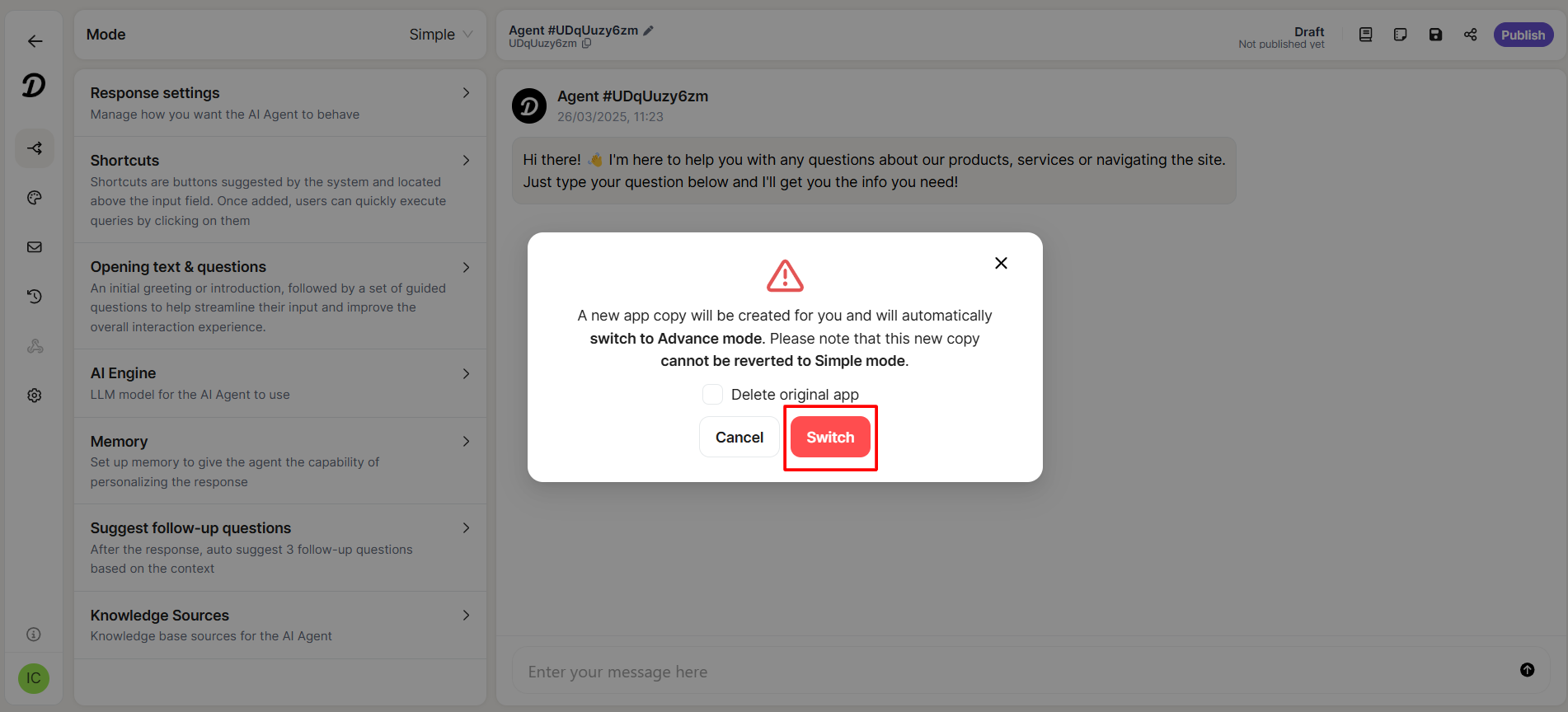
**Step 1**: At "setting AI chat & Agent page", switch mode from "**Simple**" to "**Advanced**"
**Step 2**: Will display the Popup confirm. Click the button "**Switch**"
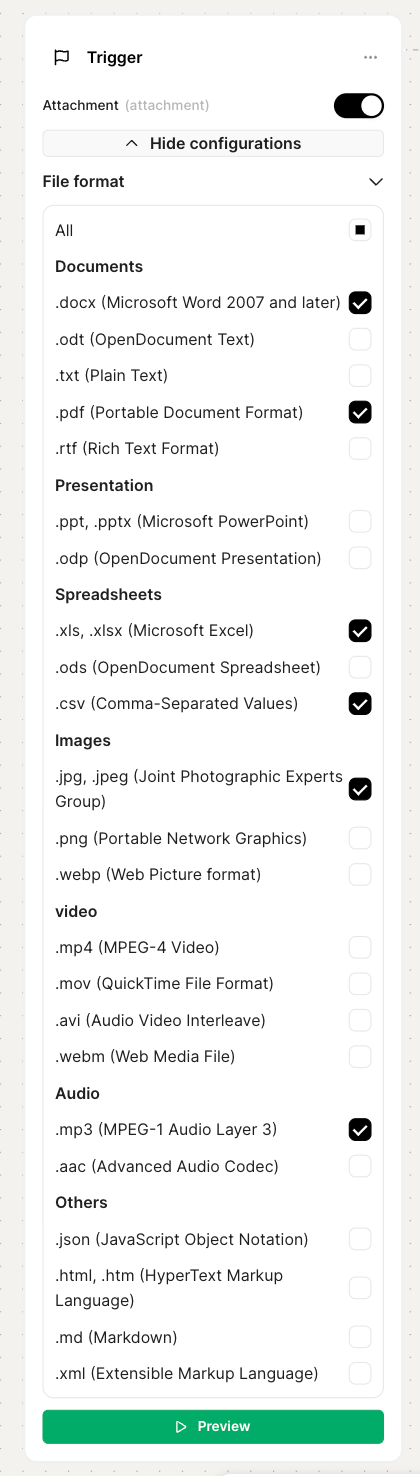
**Step 3**: At "Flow setting", you can view the trigger
You can switch the toggle for attachments to allow users to attach files in the chat.
\------------------------------------
The following sections detail the available Input components.