> For the complete documentation index, see [llms.txt](https://docs.diaflow.io/llms.txt). Markdown versions of documentation pages are available by appending `.md` to page URLs; this page is available as [Markdown](https://docs.diaflow.io/productivity-tools/diaflow-drive.md).
# Diaflow Drive
The drive serves as a centralized location for data file storage. Users can download raw files to their local machines if necessary. Files placed in the workspace file storage area are accessible by any flow in the workspace. They can be deposited in the drive area either by the user or by a flow, which can generate documents and store them in this area. You can switch the view of your files/folders by clicking on the grid or the list button. If you click on "**Actions**" you can manage your files and on "**Options**" you can sort your files.
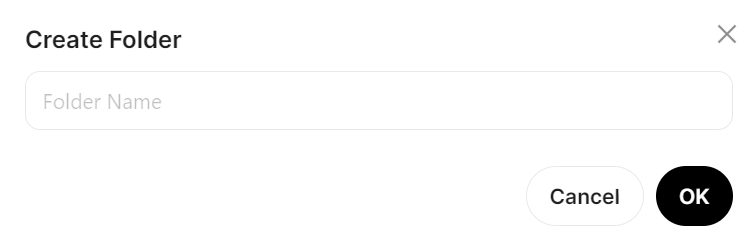
## 1. Create Folder
Folders can be create by clicking on "**Create Folder**" button.
## 2. Upload Files
Files can be added by clicking on the "**Upload**" button in the top right corner of the drive window.
After creating the folder "Test" and uploading a screenshot file, those elements will be listed in the drive window.
## 3. Sort
Can sort the files with options:
* Sort by name
* Sort by size
* Sort by date
* Show folder first
## 4. Action on File
Right-click on the file you want to perform an action on, including the following actions:
* Copy ID
* Rename
* Add to Vector
* Move
* Download files
* Delete
* Open selection
* Select all files
* Clear selection